
A slow WordPress site costs you twice: visitors leave before the page loads, and Google ranks slower sites lower. The good news is that most slow sites are slow for the same handful of reasons, and fixing the biggest ones first gives most of the gain.
This guide shows how to measure the problem properly and fix it in order of impact.
Step 1: Measure before you change anything
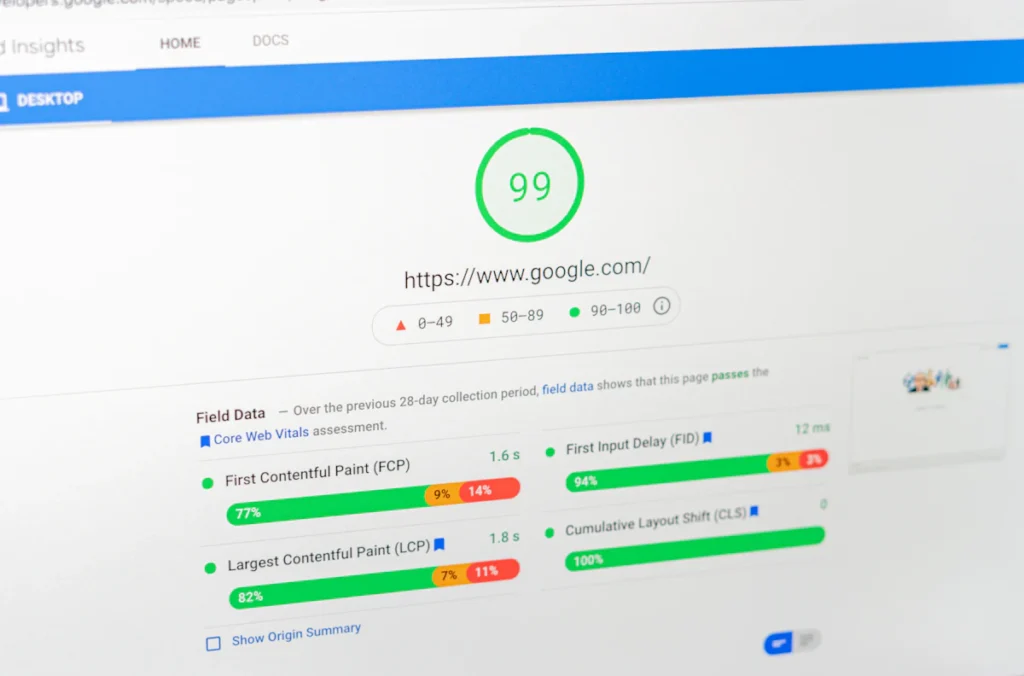
Test your homepage and one important inner page (a product page or a service page) with PageSpeed Insights (pagespeed.web.dev). Focus on the mobile results and on these Core Web Vitals:
- Largest Contentful Paint (LCP): how fast the main content appears. Aim for under 2.5 seconds.
- Interaction to Next Paint (INP): how quickly the page responds to taps and clicks. Aim for under 200 ms.
- Cumulative Layout Shift (CLS): how much the layout jumps while loading. Aim for under 0.1.
Also note the Time to First Byte (TTFB), how long the server takes to start responding. If TTFB is above about 0.8 seconds, the server or WordPress itself is the bottleneck, and front-end tweaks alone will not fix it.
Step 2: Turn on page caching
Without caching, WordPress builds every page from scratch with PHP and database queries for every visitor. A page cache stores the finished HTML and serves it instantly.
- On LiteSpeed servers, use the free LiteSpeed Cache plugin.
- On other hosts, use your host’s built-in cache or a plugin such as WP Rocket, WP Super Cache, or W3 Total Cache.
- Exclude pages that must stay dynamic: cart, checkout, account pages, and pages with forms that use security tokens.
Caching alone often cuts load time in half.
Step 3: Fix the hosting and PHP basics
- Use a current PHP version (8.1 or newer). Newer PHP versions are significantly faster. Check plugin compatibility first.
- Turn on object caching (Redis or Memcached) if your host offers it. It helps WooCommerce and busy sites.
- Check your hosting plan. Very cheap shared hosting with overloaded servers produces slow TTFB that no plugin can fix.
- Use a CDN such as Cloudflare if your visitors are far from your server.
Step 4: Optimize images
Images are usually the heaviest part of a page.
- Resize images to the size they are displayed at. A 4000-pixel photo shown at 800 pixels wastes bandwidth.
- Convert to WebP or AVIF, which are much smaller than JPEG and PNG at the same quality.
- Lazy-load images below the fold, but do not lazy-load the main hero image. That slows down LCP.
- Always set width and height on images to avoid layout shift.
Step 5: Reduce plugins and heavy scripts
Every plugin can add CSS, JavaScript, and database queries. Review your plugin list and remove anything you do not actively use. Pay special attention to:
- Sliders and carousels, which are heavy and rarely help conversions
- Multiple plugins that do the same job (two SEO plugins, two form plugins)
- Chat widgets, social feeds, and tracking scripts that load on every page
- Page builder add-on packs with dozens of widgets you never use
The free Query Monitor plugin shows which plugins add the most database queries and load time on a page.
Step 6: Optimize CSS, JavaScript, and fonts
- Minify and combine CSS and JavaScript carefully, and test the site afterwards. Aggressive settings can break menus and forms.
- Defer non-critical JavaScript so it does not block the first paint.
- Host fonts locally, limit yourself to the font weights you actually use, and use
font-display: swap. - Avoid loading icon fonts for a handful of icons. Inline SVG icons are lighter.
Step 7: Clean the database
Over time the database collects post revisions, expired transients, spam comments, and leftover tables from deleted plugins. Cleaning these with a tool such as WP-Optimize, and limiting revisions with define( 'WP_POST_REVISIONS', 10 );, keeps queries fast. Back up the database before cleaning.
Step 8: Measure again
Rerun PageSpeed Insights on the same pages and compare. Keep in mind that the “field data” section uses real visitor data from the last 28 days, so it improves more slowly than the lab score.
Want a faster site without the trial and error? Our Speed Optimization service measures your site, fixes the biggest bottlenecks first (caching, images, scripts, and server settings), and shares before-and-after results. Prices start at $49, confirmed after a quick review. Request a speed review.
Frequently asked questions
What is a good PageSpeed score for WordPress?
Aim for 90 or above on desktop and as high as possible on mobile, but prioritize passing Core Web Vitals. Real-world LCP, INP, and CLS matter more to Google than the score itself.
Will a caching plugin break my site?
Page caching is usually safe. Problems tend to come from aggressive CSS and JavaScript optimization settings, so enable those one at a time and test.
Is my theme making my site slow?
It can. Heavy multipurpose themes and page builders add a lot of code. Test with a lightweight default theme on a staging copy to see how much difference the theme makes.